VLC Media Player
VLC Media Player is a fast, lightweight toolbox that every creator of repair and tutorial videos should have on hand. While it's not a full non-linear editor, VLC's broad codec support, simple capture features, and practical repair options make it ideal for diagnosing problematic footage, extracting short clips, and preparing assets for deeper editing. From remuxing a truncated MP4 to taking high-resolution snapshots for annotated callouts, VLC handles many everyday tasks quickly and consistently across Windows, macOS, Linux, and mobile devices.
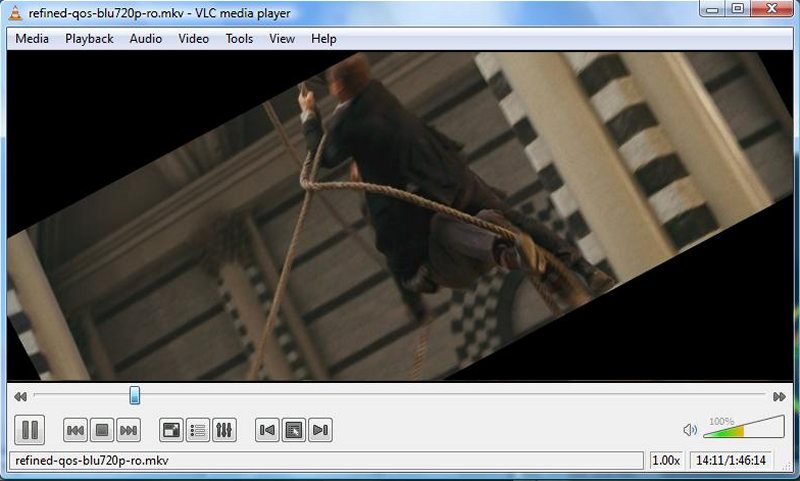
This guide walks through the common issues you'll encounter with footage-corrupted containers, codec mismatches, sync problems, and low-light noise-and shows how to use repair video software for fast fixes and inspections. You'll find step-by-step methods to recover playback (Convert/Save remuxing, AVI "Always fix"), practical capture and export settings for desktop and webcam recordings, and workflows for creating annotated, easy-to-follow tutorial clips. When a clip needs more than VLC can offer, the guide points to FFmpeg commands, dedicated repair tools, and AI denoisers/upscalers to take your recovered footage to production quality.
Adopt the simple best practices here-always work on copies, keep a capture log with codec and device details, and use consistent export and backup strategies-to protect original material and speed troubleshooting. Whether you're a hobbyist documenting a repair or a technician producing step-by-step tutorials, these VLC-first workflows will help you diagnose problems quickly, prepare clear instructional assets, and know exactly when to escalate to more advanced repair and enhancement tools.
What makes VLC ideal for repair/tutorial videos
VLC Media Player is a practical, no-friction tool for anyone creating or working with repair and tutorial videos. It's not a full editing suite, but its combination of broad playback compatibility, lightweight design, and simple repair/conversion features makes it a go-to utility for diagnosing, preparing, and previewing footage before deeper editing or sharing.
Wide codec and container support (MP4, MOV, AVI, MKV)
VLC plays virtually anything. Repair videos come from phones, action cams, DSLR/mirrorless cameras, inspection cameras, or screen captures - each often using different containers and codecs. VLC supports virtually all common containers (MP4, MOV, AVI, MKV) and many uncommon or legacy codecs, so you can immediately open clips without hunting for codec packs.
Practical benefits:
- Open a problematic clip without installing extra software.
- Verify whether an issue is playback-only (missing codec) or a deeper corruption.
- Inspect metadata and stream details (Tools → Media Information) to identify codec, frame rate, resolution, bitrates - useful for troubleshooting and when choosing export settings.
Cross-platform, free and lightweight for field use
Runs on Windows, macOS, Linux, Android, and iOS; free and portable. For technicians and creators working on-site or on budget, VLC offers consistent behavior across devices and doesn't require high-end hardware. It's simple to install, and portable builds allow running from a USB drive when working on customers' machines or in the field.
Practical benefits:
- Quick checks on a laptop or phone during diagnostics or before sending footage to a colleague.
- Low overhead: you can playback high-resolution clips on modest hardware using VLC's performance settings.
- Same UI and feature set across platforms reduces friction in team workflows.
Quick fixes vs. when to use dedicated repair tools
VLC includes a handful of simple, effective "quick fix" features that solve many everyday problems with repair footage - but it has limits. Know what VLC can do fast, and when to escalate.
VLC quick fixes:
- Container rebuilds by remuxing or converting (Media → Convert/Save) to a stable container (e.g., remux MOV/fragmented MP4 → MP4), which often restores playback for files with broken indices.
- The AVI "Always fix" option (Tools → Preferences → Input / Codecs → Damaged or incomplete AVI file) can recover many truncated AVI captures.
- Transcoding to a common codec (H.264/AAC MP4) resolves codec incompatibility and allows editing tools to open clips.
- Simple filters (rotation, crop) and frame-by-frame/slow-motion playback for inspection.
When to use dedicated tools:
- Severe corruption where data is missing or file headers are irreparably damaged - use specialized video repair tool free (FFmpeg advanced reconstruction, dedicated file repair utilities).
- Frame-level restoration, color grading, noise reduction, or advanced stabilization - use editing/repair software (DaVinci Resolve, Premiere, Neat Video, Topaz Video AI).
- Recovering audio or reconstructing timestamps for forensic-grade work - use professional recovery suites that can parse and rebuild damaged streams.
Workflow recommendation:
- Open the file in VLC to determine the symptom (black frames, no audio, jitter, codec errors).
- Try remuxing or simple conversion in VLC to restore a playable copy.
- If VLC can play but editing software can't, transcode to an editor-friendly H.264 MP4.
- If VLC cannot recover or playback shows missing frames/garbled data, move to FFmpeg or a Digital Video Repair and work on a copy of the original file.
Summary
- VLC is excellent for quick diagnosis, immediate playback of many camera formats, lightweight on-field use, and fast container repairs or conversions.
- Use VLC as the first step: diagnose, repair simple container/index issues, and prepare footage for editing. For deep repair, professional tools are required.
Diagnose common problems in repair footage
Identifying the exact issue with a repair or tutorial clip is the first step to fixing it. Below are the most common problems you'll encounter, how to spot them with VLC, and what they imply for repair or editing.
Corrupted container / missing index
- Symptom: File opens but skips, shows "cannot play" errors, or plays only part of the clip.
- How VLC helps: VLC often plays fragments by rebuilding the index on the fly; check Tools → Media Information → Codec and Statistics to see stream length and packet info.
- Cause: Interrupted recording, abrupt camera shutdown, or damaged file header/container.
- Quick fixes:
- Remux/convert in VLC (Media → Convert/Save) to rebuild the container (e.g., remux to MP4).
- For AVI, enable Tools → Preferences → Input / Codecs → "Damaged or incomplete AVI file" → set to "Always fix".
- When to escalate: If remuxing fails or large sections are missing, use FFmpeg to rebuild indexes or specialized recovery tools; always work on a copy.
Codec mismatch or unsupported stream
- Symptom: Video or audio absent, error like "Your input can't be opened" or visible audio waveform but no picture.
- How VLC helps: Open Media Information to view codec names (e.g., HEVC, H.265, ProRes, PCM). VLC supports many codecs but may lack proprietary camera codecs.
- Cause: Camera-specific or very new codecs, hardware-accelerated profiles, or missing audio codec.
- Quick fixes:
- Transcode in VLC to a common codec (H.264 video + AAC audio) via Convert/Save.
- Install official camera software or use FFmpeg with camera vendor presets.
- When to escalate: If codec is proprietary (RAW cinema formats) or you need lossless handling, use the camera's utilities or professional transcoding tools (DaVinci Resolve, Adobe Media Encoder).
Sync, black frames, or audio dropouts
- Symptom: Audio lags/lead relative to video, intermittent black frames, or audio cutting out.
- How VLC helps:
- Use Tools → Track Synchronization to test A/V offset adjustments live.
- Use View → Advanced Controls and record short segments to isolate the issue.
- Frame-by-frame (E) helps find exact points of dropout or black frames.
- Causes:
- Sync: Variable frame rates, dropped frames during capture, or incorrect timecodes.
- Black frames: Corrupted frames, camera buffer overrun, or mismatched frame size.
- Audio dropouts: Damaged audio track, bitrate issues, or container errors.
- Quick fixes:
- Adjust audio delay in VLC for temporary viewing.
- Remux or transcode to a constant frame rate (CFR) MP4 to resolve VFR sync problems.
- If black frames are few, trim them out; if widespread, attempt remux or FFmpeg frame-level reconstruction.
- When to escalate: Persistent sync issues across players/editors require FFmpeg re-encoding to CFR or professional tools that can re-time footage.
Low light, noise, shaky footage - playback vs. repair
- Symptom: Grainy, underexposed video or heavy camera shake that obscures details in repair tutorials.
- How VLC helps:
- Use Video Effects (Tools → Effects and Filters → Video Effects) to temporarily boost brightness/contrast and reduce noise for inspection.
- Slow playback/frame-by-frame to examine steps despite shakiness.
- Cause: Poor lighting, high ISO, compact camera sensor limits, or unstable mounting/handheld capture.
- Quick fixes (playback-level):
- Apply temporary sharpening, brightness, and denoise filters in VLC to review and capture clearer reference frames.
- Use snapshot (Shift+S) to save stills for step-by-step documentation.
- Repair-level fixes:
- For production, use noise reduction and stabilization in editors (Neat Video, Deshaker, Resolve's stabilization).
- Enhance lighting in reshoots where possible - prevention is better than heavy post-processing.
- When to escalate: If critical details are lost due to noise or blur, attempt AI upscaling/denoising tools, but plan for reshoot when possible for tutorial accuracy.
Summary checklist
- Always open suspect files in VLC first to determine symptoms.
- Inspect Media Information for codec/container clues.
- Try remux/transcode in VLC before moving to FFmpeg or specialized tools.
- Use VLC's temporary effects and capture tools for quick inspection and documentation; for restoration or production-quality fixes, use dedicated editing/repair software.
Fast VLC methods to recover or play damaged files
VLC can often rescue problematic repair videos quickly. Below are practical, step-by-step methods to recover playback or produce an editable copy without advanced tools.
Convert / Save (transcode) to rebuild container
- Open VLC → Media → Convert / Save.
- Add the damaged file → click Convert / Save.
- Choose a stable Profile (e.g., H.264 + MP3/AAC in MP4). Optionally click the wrench icon to set bitrate, resolution, or select "Keep original video track" if just remuxing.
- Set Destination file and Start. VLC will transcode and write a new container, often bypassing broken indices or unsupported streams.
- Verify the output in VLC and in your editor. Work on copies only.
When to use:
- File plays partially or shows errors but data exists.
- You need an editor-friendly H.264 MP4 without installing extra codecs.
Limitations:
- Transcoding re-encodes (quality loss and longer processing). Prefer remuxing if possible.
AVI "Always fix" option and renaming trick
- For AVI files: Tools → Preferences → Input / Codecs → find "Damaged or incomplete AVI file" and set it to "Always fix."
- Reopen the AVI in VLC - many truncated AVI files will now play.
- Renaming trick: If a file uses an AVI-style container but with wrong extension (e.g., .mp4 renamed to .avi), try copying and renaming the extension to .avi and open in VLC with "Always fix" enabled - this can force VLC's repair routine to try rebuilding indexes.
When to use:
- Abruptly stopped recordings from older cameras or capture cards saved as AVI.
- Quick on-the-spot recovery for truncated captures.
Caveats:
- This is a heuristic fix; it won't restore missing data and may produce timing issues. Always keep the original.
Remuxing with VLC vs. FFmpeg (when to switch)
Remuxing = moving streams into a new container without re-encoding (preserves quality). VLC can do simple remuxing via Convert/Save by choosing "Keep original track" or selecting identical codecs and using MP4/MKV outputs. FFmpeg offers more control and reliability.
VLC remux workflow:
- Media → Convert/Save → Choose a container (MP4/MKV) and select settings that match source codecs to avoid re-encoding.
- Start and test output.
FFmpeg remux command (example):
ffmpeg -i input.mov -c copy -map 0 output.mp4When to use FFmpeg:
- VLC remux fails, hangs, or outputs incomplete files.
- You need precise control (stream mapping, subtitle handling, forensic timestamps).
- Dealing with fragmented MP4s, strange timecodes, or partial files - FFmpeg's copy mode and error tolerances often succeed where GUI tools don't.
Decision guide:
- Try VLC first for speed and simplicity.
- If VLC's output is broken, has missing streams, or you need lossless handling, switch to FFmpeg.
- If FFmpeg also fails, move to specialized repair utilities or forensic recovery tools.
Quick tips
- Always work on copies.
- Test outputs in VLC and in your target editor.
- Use remux (lossless) when possible; transcode only when necessary for compatibility.
Using VLC to prepare footage for repair tutorial videos
VLC is a lightweight, practical tool for quick prep work before detailed editing. Use it to extract clips, mark important moments, and perform simple transformations so your repair tutorial workflow stays fast and focused.
Trim and capture clips with Advanced Controls (Record)
- Enable: View → Advanced Controls to show the Record button.
- Trim workflow:
- Open the source file and use the timeline/seek to the desired in point.
- Press Record to start, play to the out point, then press Record again to stop.
- Recorded clips are saved automatically (Windows: Videos; macOS: Movies; Linux: ~/Videos).
- Use cases:
- Fast extraction of short steps (e.g., a disassembly clip).
- Creating reference clips for step-by-step screenshots.
- Notes:
- Recording is a screen/capture copy of playback-if the source is corrupted, only playable segments record.
- For frame-accurate trims, record frame-by-frame (E) to position precisely before starting/stopping.
Create bookmarks and frame-by-frame navigation for highlights
- Bookmarks:
- Tools → Media Information → go to the Seek bar and click Create Bookmark (or use View → Advanced Controls snapshots/bookmark options depending on VLC build).
- Use bookmarks to mark important timestamps (inspection points, problem spots).
- Frame-by-frame:
- Use the E key to advance one frame at a time; useful when documenting exact screw positions, wire routing, or defect locations.
- Combine frame-by-frame with snapshots (Shift+S) to capture high-detail stills for overlay annotations later.
- Workflow tip:
- Create a simple log (timestamp + short note) while watching: this speeds editorial work and voiceover scripting.
Rotate, crop and permanently save transformations (Convert + filters)
- Temporary adjustments:
- Tools → Effects and Filters → Video Effects → Geometry to rotate or transform for viewing.
- Crop and basic rotate are available for live playback to inspect orientation and framing.
- Permanent save (apply and export):
- Tools → Preferences → Show settings → All → Video → Filters. Enable required filters (e.g., rotate, cropdetect, transform).
- Use Media → Convert / Save → add file → Convert. In the profile, enable the matching video filter options (or create a profile that includes desired filters).
- Start to write a new file with transformations applied.
- When to use:
- Quick fixes for misoriented footage (phone rotated), simple cropping to remove irrelevant areas, or flipping for correct viewpoint in tutorials.
- Limitations & alternatives:
- VLC filters are basic - for accurate, non-destructive transforms, use an editor (Premiere, DaVinci Resolve) which preserves quality and offers precise control.
- Always export to a high-quality intermediate (H.264 with high bitrate or a lossless codec) if you'll do further editing.
Summary checklist
- Use Advanced Controls → Record to quickly extract short steps.
- Mark key moments with bookmarks and use frame-by-frame plus snapshots to create documentation assets.
- Apply simple rotation/crop via VLC filters and export when you need a fast, permanent fix; for production-grade transforms, move to a proper NLE.
Improve clarity and viewing for repair demonstrations
Clear visuals and smooth playback make repair tutorials useful. VLC offers fast, practical tools to enhance visibility for inspection and presentation without leaving your review workflow.
Video Effects: brightness, contrast, sharpness, denoise
- Quick adjustments for inspection:
- Tools → Effects and Filters → Video Effects → Essential to change Brightness, Contrast, Saturation, and Gamma for immediate visibility improvement.
- Use the Sharpen control under the same panel to emphasize edges; increase slightly to avoid artifacts.
- Noise reduction for clearer detail:
- VLC's denoise is basic but can help preview noisy footage: Video Effects → Advanced → check simple denoise filters (availability varies by build).
- For production-grade denoising use specialized tools (Neat Video, DaVinci Resolve noise reduction) after identifying problematic segments in VLC.
- Best practice:
- Make small incremental adjustments and use snapshots (Shift+S) to compare before/after; avoid over-sharpening which can hide fine repair details.
Slow motion and frame-by-frame for step analysis
- Slow motion playback:
- Playback → Speed → choose slower rates (e.g., 0.50x, 0.25x) to watch complex movements like fast disassembly steps.
- Keyboard shortcuts (+ / -) allow quick speed changes during review.
- Frame-by-frame precision:
- Press E to advance a single frame - essential for documenting exact screw positions, connector orientation, or failure points.
- Combine with snapshots to capture frames for annotation or sequential step images.
- Use cases:
- Explaining delicate steps (lever angles, part alignments) where motion blur hides detail.
- Creating step-by-step image sequences for manuals or overlay callouts.
- Tip:
- If source uses variable frame rate (VFR), export or remux to constant frame rate (CFR) before relying on slow motion/frame-exact timing in editors.
Output module and hardware acceleration for smooth playback
- Tweak output module for better performance:
- Tools → Preferences → Video → Output: try different output modules (Default, Direct3D11, OpenGL, X11) if playback stutters; some modules perform better on specific GPUs/drivers.
- Enable hardware acceleration:
- Tools → Preferences → Input / Codecs → Hardware-accelerated decoding (set to Automatic or use specific APIs like DXVA2, VA-API, or VideoToolbox) to offload decoding and improve smoothness for high-resolution repair footage.
- When to change settings:
- On low-power laptops or when playing 4K/60fps inspection footage, enabling HW decode reduces CPU load and prevents dropped frames.
- If artifacts appear with HW decoding, fall back to software decoding.
- Additional performance tips:
- Increase caching values: Tools → Preferences → Input / Codecs → Advanced - raise File/Network caching (ms) for smoother playback of large or remote files.
- Close other apps, use VLC's Direct rendering options, and prefer local copies over network playback when analyzing critical steps.
Summary checklist
- Use Effects to enhance visibility quickly; export cleaned frames for editing if needed.
- Slow motion and frame-by-frame are essential for precise step analysis; remux to CFR for consistent timing.
- Enable correct output module and hardware acceleration to ensure smooth playback of high-resolution repair footage.
Add annotations, subtitles and voiceover for tutorials
VLC isn't an editor, but it's excellent for loading captions, testing subtitle sync, capturing reference frames, and reviewing voiceover timing. Use it to validate assets before final compositing in an editor.
Loading and syncing SRT captions in VLC
- Load subtitles: Playback → Subtitle → Add Subtitle File and select your .srt.
- Quick sync adjustments: Tools → Track Synchronization → Subtitle track synchronization (positive value delays subtitles; negative advances them). Use during playback to dial in timing.
- Create or tweak SRT timestamps:
- Export a simple timing log of key frames (use frame numbers/timecodes from VLC) and edit the .srt in any text editor; format:
1
00:00:05,000 --> 00:00:10,000
Instruction text here.
- Tips:
- Test subtitles on the final exported video in VLC to confirm rendering and line breaks.
- For burned-in subtitles, use your editor to render them permanently; VLC's Add Subtitle only overlays during playback.
Using VLC snapshots and external editors for on-screen callouts
- Take high-quality snapshots: View → Advanced Controls → use the Snapshot button or press Shift+S. Saved images are in the default Videos/Movies folder.
- Workflow for callouts:
- Capture frames that show key detail (screw positions, connector labels).
- Open snapshots in a simple editor (Paint, GIMP, Affinity Photo) to add arrows, boxes, labels, and magnified insets.
- Import annotated images into your NLE or presentation software as overlays.
- Best practices:
- Capture at original resolution for clear callouts.
- Use consistent colors and font sizes for annotations to match tutorial branding.
- Keep a numbered reference list (timestamp → snapshot filename → annotation note) to speed assembly.
Best workflow: annotate in a simple editor, play in VLC for review
- Recommended pipeline:
- Inspect footage in VLC; note timestamps and problem steps.
- Use VLC snapshots and frame-by-frame to collect reference frames.
- Annotate snapshots in a lightweight image editor for on-screen callouts.
- Assemble annotated images and trimmed clips in an NLE; export a draft.
- Review the exported draft in VLC (fast, cross-platform) to check subtitle sync, voiceover timing, and visual clarity across devices.
- Why this works:
- VLC is fast for review and subtitle testing but keeps editing tasks in tools made for non-destructive composition.
- Iterating in VLC lets you confirm issues before time-consuming re-exports.
Summary checklist
- Use VLC to load and fine-tune SRT subtitles.
- Capture high-res snapshots in VLC for annotation in external editors.
- Iterate edits in an NLE, then use VLC for cross-platform playback checks before publishing.
Record, capture and export tutorial clips with VLC
VLC provides simple capture tools for screen, webcam, and device inputs and can export clips in common formats ready for upload or further editing. Below are practical steps, recommended settings, and fast fixes for common export problems.
Desktop and webcam capture (Open Capture Device)
- Open capture:
- Media → Open Capture Device.
- For desktop/screen: set Capture mode to "Desktop" and choose a frame rate (15-30 fps for tutorials; 30 fps for smoother motion).
- For webcam: set Capture mode to "DirectShow" (Windows) or appropriate device on macOS/Linux, then choose the video/audio device.
- Record to file:
- Instead of Play, choose Convert/Save → set Profile and Destination → Start to capture directly to a file.
- Or use View → Advanced Controls and press Record during playback of the capture stream (useful for ad-hoc clips).
- Tips:
- For screen capture, pick 15-30 fps depending on motion; higher fps increases CPU usage and file size.
- Capture audio from the correct input (system audio vs. microphone) - verify in sound settings and VLC's device list.
- Test short recordings to confirm sync and quality before full sessions.
Recommended export formats and profiles for upload (H.264 MP4)
- Best general profile:
- H.264 (video) + AAC (audio) in an MP4 container - wide compatibility, good quality/size balance.
- VLC profile setup:
- Media → Convert/Save → choose "Video - H.264 + MP3 (MP4)" or create a custom profile with H.264 codec, AAC audio, and desired bitrate.
- Bitrate recommendations:
- 1080p: 8-12 Mbps for high detail; 4-6 Mbps acceptable for web tutorials.
- 720p: 3-6 Mbps.
- 480p/mobile: 1-2 Mbps.
- Frame rate: match source (30 or 60 fps) or 30 fps for most tutorial content.
- Export tips:
- For editing, export a higher-quality intermediate (higher bitrate, or a low-compression codec) then reencode for upload.
- Use MP4 with H.264 baseline/main profile for maximum compatibility; use H.265/HEVC only if your audience/tools support it.
Troubleshooting black exports or missing audio
- Black video in exported file:
- Cause: Incorrect video codec/profile or filter mismatch.
- Fixes:
- In Convert/Save profile, ensure a valid video codec (H.264) is selected and video filters aren't forcing off-screen rendering.
- Try a different Output module or disable hardware acceleration in Preferences if capture used HW decode.
- Re-record a short test using a different profile (e.g., H.264 baseline) to isolate the issue.
- Missing audio in exported file:
- Cause: Wrong audio device selected, unsupported audio codec, or audio track not mapped during convert.
- Fixes:
- Verify microphone/system audio selection when opening capture device; test with a quick recording.
- In Convert profile, ensure an audio codec (AAC/MP3) is enabled and bitrate/sample rate set (e.g., 128 kbps, 48 kHz).
- If using two audio sources, map them or mix externally; VLC's capture interface may only pick one input.
- General troubleshooting steps:
- Test short captures to confirm both video and audio before full recording.
- Play the resulting file back in VLC and another player to rule out player-specific issues.
- Check Media → Codec Information for absent streams.
- If VLC export fails repeatedly, capture raw with a dedicated screen recorder (OBS) or use FFmpeg for robust command-line capture:
ffmpeg -f dshow -i video="Your Webcam":audio="Your Microphone" -c:v libx264 -crf 23 -c:a aac output.mp4- Always keep originals; re-record if the source is corrupted.
Summary checklist
- Use Open Capture Device for quick desktop/webcam capture; test frame rate and audio input first.
- Export to H.264 + AAC MP4 for best compatibility; choose bitrate based on resolution.
- Troubleshoot black or silent exports by testing profiles, verifying device selection, and using alternative capture tools (OBS/FFmpeg) if VLC fails.
When VLC isn't enough: next-step repair tools and workflows
VLC is great for quick diagnosis and simple fixes, but some damaged or degraded repair footage requires more powerful, specialized tools. Below are practical next steps, example commands, and guidance for choosing repair and enhancement workflows.
FFmpeg remux/repair commands (examples)
FFmpeg is a command-line powerhouse for lossless remuxing, rebuilding indexes, and recovering partial files. Work on copies only.
- Remux without re-encoding (preserve quality):
ffmpeg -i input.mov -c copy -map 0 output.mp4Use when VLC cannot remux or when you need exact stream preservation.
- Force input error tolerance and rebuild:
ffmpeg -err_detect ignore_err -i corrupted.mp4 -c copy -map 0 recovered.mp4Use for truncated files or when FFmpeg aborts on minor stream errors.
- Rebuild timestamps and repackage fragmented MP4s:
ffmpeg -i fragmented.mp4 -c copy -fflags +genpts fixed.mp4Use for VFR/timestamp problems causing sync issues.
- Transcode to constant frame rate (fix VFR sync):
ffmpeg -i input.mp4 -r 30 -c:v libx264 -crf 18 -c:a aac -b:a 192k output_cfr.mp4Use when editors/stitching require CFR.
- Extract audio or video only (diagnose missing streams):
ffmpeg -i input.mp4 -an -c:v copy video_only.mp4
ffmpeg -i input.mp4 -vn -c:a copy audio_only.aac
Dedicated repair tools (Stellar, Remo, Clever Online Repair) - use cases
When FFmpeg cannot recover usable media, dedicated recovery tools often offer GUI workflows and deeper parsing of damaged containers.
- Stellar Repair for Video
- Use for: severely corrupted MP4/MOV/AVI files with header/index damage, broken frames, or playback errors.
- Strengths: user-friendly GUI, preview recovered clips, batch repair.
- Limitations: not free; success varies with severity.
- Remo Repair
- Use for: quick repair of truncated or broken containers; helpful for camera-specific quirks.
- Strengths: simple interface, guided workflows.
- Limitations: may not reconstruct missing frames; works best when file structure is partially intact.
- CleverFiles / Online Repair tools
- Use for: small files or quick tests when a local tool isn't available.
- Strengths: convenience, no install.
- Limitations: privacy/size limits and variable success rates - avoid uploading sensitive content.
When to choose these tools:
- FFmpeg copy mode fails or produces playable but corrupted output.
- You need a GUI and preview before committing to recovery.
- Forensic recovery or professional restorations, combine tools and keep original evidence intact.
Workflow recommendation:
- Try VLC remux/convert.
- Use FFmpeg copy/genpts/err_detect commands.
- If unsuccessful, run dedicated repair tools (keep a copy of each tool's output).
- If recovery yields partial clips, stitch and transcode in an NLE or use frame interpolation to fill gaps.
AI upscalers and denoisers for degraded footage
When footage is low-light, noisy, or low resolution (common in inspection or field repair videos), AI tools can improve legibility-but they can introduce artifacts and should be used judiciously for instructional content.
- Common tools:
- Topaz Video AI: strong upscaling, denoising, and stabilization for low-res or micro-blurred footage.
- DaVinci Resolve (Neural Engine): built-in super scale, temporal noise reduction, and stabilization in the Studio version.
- Neat Video: advanced denoising plugin for NLEs; excellent at preserving edges while reducing grain.
- Use cases:
- Recovering readable detail (labels, serial numbers) from low-res captures.
- Reducing sensor noise from high-ISO clips to make steps visible.
- Upscaling older inspection footage for inclusion in modern tutorials.
- Best practices:
- Work on high-quality copies and test small segments first.
- Combine denoising before upscaling for cleaner results.
- Avoid over-processing - excessive sharpening or hallucinated detail can mislead viewers in repair contexts.
- Document any AI enhancements in the tutorial notes so viewers know what was altered.
Summary decision guide
- Quick container/index issues → VLC remux/convert.
- Lossless, precise recovery or advanced mapping → FFmpeg (copy/genpts/err_detect).
- GUI-based deeper repair → Stellar, Remo, Clever Online Repair.
- Visual enhancement (noise, resolution) → AI upscalers/denoisers (Topaz, Neat Video, Resolve) with cautious, documented use.
Best practices and checklist for creating repair videos
A reliable workflow prevents data loss, speeds troubleshooting, and ensures your repair tutorials are clear and trustworthy. Use this checklist as a routine before, during, and after capture and editing.
Always work on copies; keep original files
- Preserve originals: Immediately copy raw files to a secure location (internal drive, external SSD, or NAS). Never edit or repair the original - always operate on duplicates.
- Make multiple backups: Keep at least two backups (local + external or cloud). Use checksum or quick spot checks to confirm copies.
- Versioning: When you make a repair attempt or transcode, save as a new file with a clear suffix (e.g., filename_recovered_v1.mp4).
- Why: Repair attempts can be destructive; originals are your fallback for better tools or forensic needs.
Capture log: codec, container, device, error symptoms
- Create a short capture log (spreadsheet or simple text file) for each session with these columns/fields:
- Filename
- Device (camera model / phone / capture card)
- Container (MP4, MOV, AVI, MKV)
- Video codec & settings (H.264, ProRes, resolution, fps)
- Audio codec & settings (AAC, PCM, sample rate)
- Date/time of capture
- Observed issues (e.g., truncated, black frames from 00:02:15-00:02:20, no audio, VFR)
- MD5 or SHA1 checksum (optional but useful for verification)
- Use VLC to inspect metadata: Tools → Media Information to record codec/container and stream durations.
- Why: A concise log speeds troubleshooting, helps when using FFmpeg or repair tools, and aids collaboration.
Export settings, naming convention and backup strategy
- Standard export presets (recommended):
- Delivery/upload: H.264 video + AAC audio in MP4 container.
- 1080p: 8-12 Mbps video bitrate, 30 fps (or match source), AAC 128-192 kbps.
- 720p: 3-6 Mbps.
- Archive/intermediate: higher bitrate or lossless/intermediate codec (ProRes, DNxHR, or H.264 with low CRF) for editing masters.
- Consistent naming convention:
- Use: YYYYMMDD_device_clipname_version.ext
- Example: 20251215_GalaxyS23_frontpanel_v1.mp4
- Include status tags: _raw, _trim, _repaired, _final.
- Folder structure example:
- ProjectRoot/
- originals/
- working_copies/
- exports/
- draft/
- final/
- snapshots/
- logs/
- Backup strategy:
- 3-2-1 rule: at least 3 copies, on 2 different media, with 1 offsite/cloud copy.
- Automate backups if possible (rsync, backup software, cloud sync).
- Why: Predictable exports and names reduce mistakes, simplify collaboration, and make audit/troubleshoot tasks straightforward.
Summary checklist (quick)
- Make immediate copies; never work on originals.
- Keep a capture log with codec/container/device and symptoms.
- Export masters in H.264/AAC MP4 for delivery; keep high-quality intermediates for editing.
- Use a clear naming convention and 3-2-1 backup approach.
Follow these practices to protect your source material, streamline repairs, and produce clear, trustworthy repair tutorial videos.
FAQ - quick fixes for common VLC issues when making repair tutorials
"VLC shows black screen" - fixes
- Try a different video output: Tools → Preferences → Video → Output → switch (Direct3D11/Direct3D9/OpenGL/Automatic). Restart VLC after change.
- Disable hardware acceleration: Tools → Preferences → Input / Codecs → Hardware-accelerated decoding → set to Disabled; restart.
- Check codec info: Tools → Media Information → Codec to confirm video stream exists; if missing, the file may lack video.
- Increase caching: Tools → Preferences → Input / Codecs → File/Network caching (ms) → raise to 1000-2000 for slow disks or network files.
- Test in another player: If black persists, try FFmpeg/MPV to rule out VLC-specific rendering issues.
"Exported clip has no audio" - fixes
- Verify input audio stream exists: Tools → Media Information → Codec shows audio stream; if absent, source has no audio.
- Select audio codec in Convert profile: Media → Convert/Save → Profile → Edit → Audio codec → ensure AAC/MP3 enabled and bitrate/sample rate set.
- Confirm capture device selection (recording): Media → Open Capture Device → ensure correct audio device is chosen (microphone vs. system audio).
- Check mute/mapping and track selection: Playback → Audio → Audio Track to ensure correct track is active; check system sound mixer for muted VLC.
- Try remux/extract audio via FFmpeg: ffmpeg -i input.mp4 -vn -c:a copy audio.aac - if this produces audio, remake the MP4 specifying that codec.